Tools & Workflows
Tools let your assistant take real actions during a conversation: query databases, post notifications, create tickets, call APIs, or run computations. The LLM decides when a tool is relevant, generates its input parameters, invokes it, and folds the result into its answer.
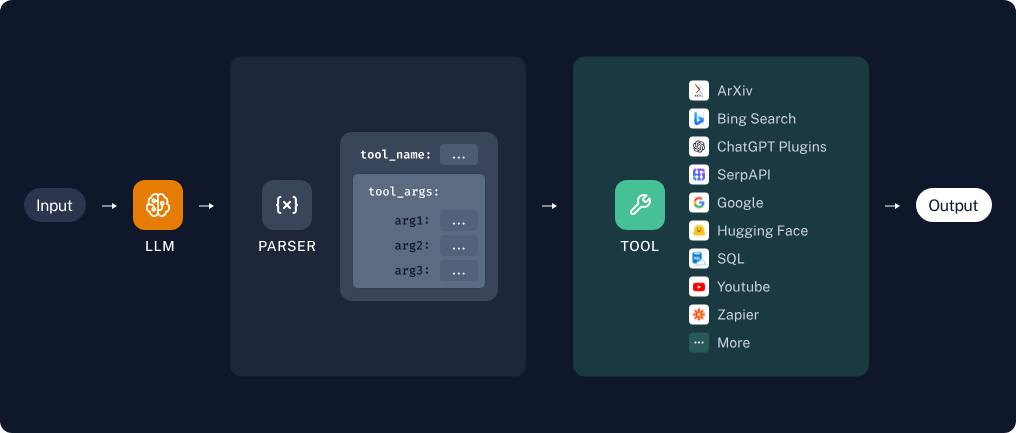
How tool selection works
- The user sends a message.
- The LLM compares the message against the titles and descriptions of the tools enabled in the project.
- If a tool matches, the LLM generates the input parameters and the platform invokes it (multiple tools can run in parallel).
- The tool output — text and/or images — is passed back to the LLM to generate the final response.
Tools are invoked automatically based on the LLM's judgment; there is no way to force invocation, but you can encourage it through prompting. For reliable instruction-following, a strong commercial model is always used for tool selection, regardless of the project's default model. Available tools appear under settings on the chat page.
Building tools with N8N
Tools are defined visually in a self-hosted n8n workflow builder — chosen for its massive library of integrations (Slack, Jira, Google Drive, Gmail, databases, HTTP, ...), its template library, and features like drag-and-drop editing and inline code nodes.
A tool is an n8n workflow with three parts:
flowchart LR
    A["n8n Form Trigger<br/>(defines inputs)"] --> B["Integration nodes<br/>(Slack, HTTP, code, ...)"]
B --> C["Final node<br/>(output = tool result)"]Inputs
Every tool must start with an n8n Form Trigger
The Form Trigger defines your tool's inputs. The AI uses the Form Title, Form Description, and Form Fields to decide when and how to use your tool — make them as descriptive as possible.
Parameters can be required or optional, and you can define as many as you like.
Outputs
No explicit return statement is needed: the output of the last node is the tool's return value. Tools can return arbitrary JSON.
Images
Images are passed as an array of image_urls in a JSON object — URLs only, no raw binary data:
{
  "image_urls": ["https://example.com/img-1.png", "https://example.com/img-2.png"],
  "other-useful-text": "These images depict the circle of life in the savanna."
}
-
Image input — add
image_urlsas a field in your Form Trigger. n8n form fields are text, so parse the JSON array manually in code nodes: -
Image output — return a JSON object with a top-level
image_urlskey. The images render inline in the chat, and the final LLM can see them. You can mix images with any other JSON data.
Recommended pattern
In practice, the most flexible tools are a two-node workflow: an n8n Form Trigger followed by an HTTP Request to a Python endpoint you host. Define arbitrary Python functions, expose them over HTTP (any serverless platform works), and let n8n handle the plumbing.
Using tools in your project
- Define tools under
https://chat.illinois.edu/<your-project>/tools. - Enable the tools you want active in your project.
- Start chatting — tools are invoked as needed.
See the tools demo video for a walkthrough.