Tools & Workflows
Tools let your assistant take real actions during a conversation: search the literature, query databases, post notifications, create tickets, call APIs, or run computations. The LLM decides when a tool is relevant, generates its input parameters, invokes it, and folds the result into its answer.
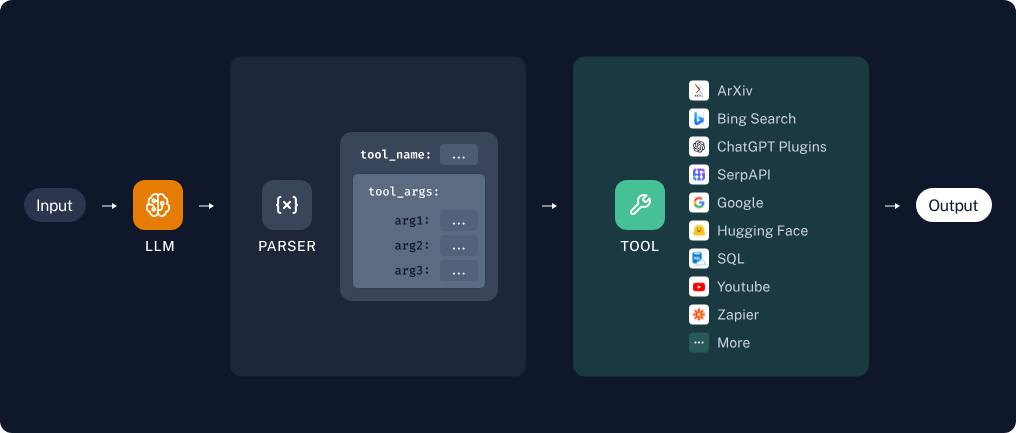
How tool selection works
- The user sends a message.
- The LLM compares the message against the names and descriptions of the chatbot's tools.
- If a tool matches, the LLM generates the input parameters and the platform invokes it (multiple tools can run in parallel).
- The tool output — text and/or images — is passed back to the LLM to generate the final response.
Tools are invoked automatically based on the LLM's judgment; there is no way to force invocation, but you can encourage it through prompting. Tool selection does not use the chatbot's default chat model — see Tool routing for which model is used and what the Custom router / Default router / Offline badge on the Tools page means. Users can toggle individual tools on or off per conversation from the Tools tab of the settings panel on the chat page.
Building tools with Sim AI
Tools are Sim AI workflows. Sim is a visual workflow builder that ships with the Illinois Chat stack and shares its Keycloak login, so any workflow you build and deploy in a Sim workspace can be exposed to a chatbot as a tool. The hosted site runs Sim at sim.chat.illinois.edu; new accounts wait for approval before they can build anything (contact support using the address in the page footer).
The Sim AI user guide covers signing in, approval, inviting collaborators, and which Sim blocks are available on this deployment.
Worked example
Build a Tool in Sim: arXiv Example walks through a complete tool, from an empty workflow to a chatbot that calls it, and explains the rules below as they come up.
A tool is a Sim workflow with three parts:
flowchart LR
    A["Start block<br/>(declares inputs)"] --> B["Workflow blocks<br/>(Function, API, integrations, ...)"]
B --> C["Last block<br/>(output = tool result)"]Inputs
The Start block defines your tool's inputs
The fields you declare on the workflow's Start block become the tool's parameters. The LLM reads each field's name and description to decide what to pass, so describe every input and include an example value. A workflow whose inputs have no descriptions is skipped rather than published with a guessed signature.
Three rules apply to every input:
- Every input needs a description. It is the only thing the LLM has to go on.
- An input is optional only if its description says so. Sim has no "required" switch, so Illinois Chat reads the description: a phrase like optional, not required or can be left blank marks the input optional. The word required anywhere in the description makes it required, even next to optional.
- The Start block's value is the default. When the LLM omits an optional input, Sim fills in whatever you typed in the Start block's value column.
Outputs
No explicit return statement is needed: the output of the last block is the tool's return value. Tools can return arbitrary JSON.
Description
The workflow description is the single most important thing the LLM reads when deciding whether to use your tool. Set it in Sim under Deploy → API → Edit API Info. Say what the tool returns, what it needs, and how the inputs change the result. Workflows without a description are flagged on the Tools page with a No description in Sim badge and are rarely chosen.
Images
Images are passed as an array of image_urls in a JSON object — URLs only, no raw binary data:
{
  "image_urls": ["https://example.com/img-1.png", "https://example.com/img-2.png"],
  "other-useful-text": "These images depict the circle of life in the savanna."
}
- Image input — declare an
image_urlsinput on the Start block. Illinois Chat fills it with the URLs of the images attached to the message. - Image output — return a JSON object with a top-level
image_urlskey. The images render inline in the chat, and the final LLM can see them. You can mix images with any other JSON data; onlyimage_urlsis specially handled.
Recommended pattern
Most tools follow the same shape: a Start block that declares the inputs, a Function block that checks and combines them, and a main block that does the work — either one of Sim's integration blocks or an API block calling a small HTTP endpoint you host. Putting the logic in a Function block or in code you control keeps the workflow short and stops bad inputs from reaching the service silently; the worked example shows what goes wrong without it.
Using tools in your chatbot
- In Sim, create an API key under Settings → Sim Keys and note the ID of the workspace that holds your workflows (it is in the workspace URL).
- Open your chatbot's Tools page in Illinois Chat (
/<your-chatbot>/tools), paste the API key and workspace ID, and save. The page lists every deployed workflow in that workspace, read-only; drafts do not appear until you deploy them, and every deployed workflow is available as a tool. - Start chatting — tools are invoked as needed. Users can switch individual tools off for a conversation in the chat Settings › Tools tab.
See Connecting a Sim workspace to an Illinois Chat project for the details, including the optional base URL and what the tool-routing status on the Tools page means.